
Getting started
The editor
The editor is one window with five areas. Every one of them is a dock: drag the seams between them to resize, and View → Reset Layout puts them back.
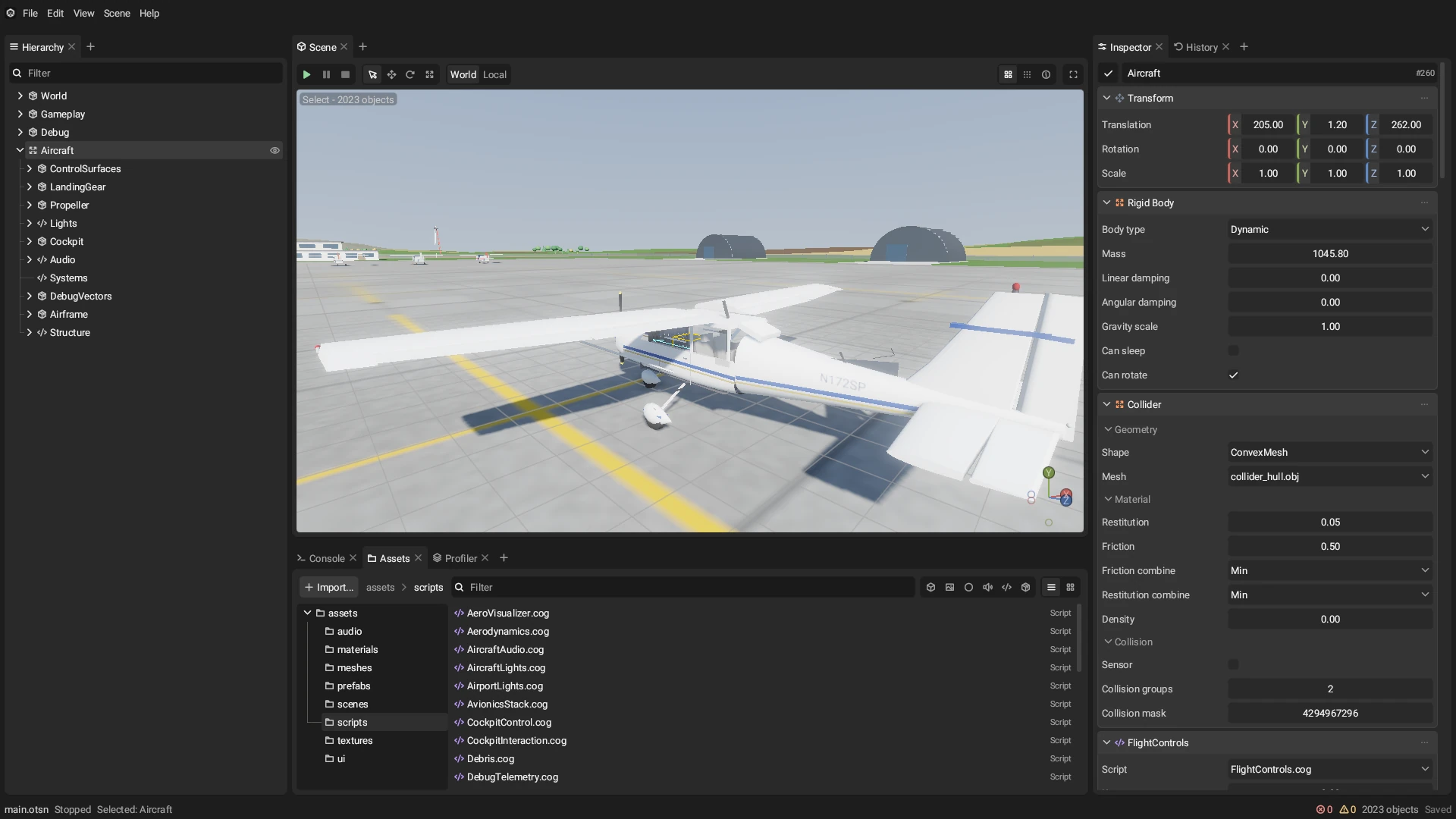
| Area | What’s in it |
|---|---|
| Hierarchy (left) | Every object in the scene, as a tree. Click to select, drag to re-parent, right-click for Rename, Duplicate, Save as Prefab and Delete. |
| Scene (middle) | The scene as the game will draw it, the transform tools above it, and Play, Pause and Stop. |
| Inspector (right) | The selected object’s components and their properties. Add Component is at the bottom. |
| History (right, a tab) | Every change you’ve made, newest first: what Undo will take back. |
| Console, Assets, Profiler (bottom) | Messages from the engine and your scripts; your project’s files; where each frame’s time goes. |
Moving around the scene
The scene view’s camera flies, like a game’s free camera.
| Do this | To |
|---|---|
| Hold the right mouse button and move the mouse | Look around |
| While holding it, W A S D | Move forward, left, back and right |
| While holding it, E and Q | Move up and down |
| While holding it, the mouse wheel | Change how fast you fly |
| Hold Shift or Alt while flying | Fly faster or slower |
| The mouse wheel without flying | Move toward or away from what you’re looking at |
| Shift+F | Fly without holding the button, until you press it again |
| F | Frame the selected object |
| 5 | Switch between perspective and orthographic |
The little axes in the corner of the scene view show which way the camera faces. Click one to look straight along it.
Selecting and moving objects
Click an object in the scene or in the Hierarchy to select it. The tools above the scene view decide what dragging does:
| Key | Tool |
|---|---|
| Q | Select: clicking picks, dragging does nothing |
| W | Move: drag an arrow to slide along one axis |
| E | Rotate: drag a ring to turn about one axis |
| R | Scale: drag a handle to stretch along one axis |
World and Local beside the tools decide whether the handles line up with the world’s axes or the object’s own. The keys don’t switch tools while you’re flying, since W, E and Q also move the camera.
Turn on Snap (the dotted button at the top right of the scene view) and drags land on whole steps: one unit when moving, 15 degrees when rotating, 0.1 when scaling. Beside it, Grid shows or hides the floor grid and Frame stats shows how long each frame takes. The layers button to their left draws a debug view over the scene, such as how many lights each pixel works through (see Lighting).
You can always type exact numbers instead: the Transform card at the top of the Inspector has the object’s position, rotation and scale. Rotation is in degrees: a quarter turn is 90. The numbers you type stay as you typed them.
Finding objects
The field at the top of the Hierarchy filters it. A plain word matches names; a word with a key asks something else:
| Type | To find |
|---|---|
door | Objects whose name contains “door” |
has:RigidBody | Objects with that component (has:"Rigid Body" works too) |
script:door | Objects with that script |
tag:enemy | Objects with that tag |
is:inactive, is:hidden, is:prefab, is:selected | Objects in that state (is:active, is:visible too) |
-has:Collider | A - in front finds the opposite |
Several terms together must all match: has:RigidBody -has:Collider finds
bodies with nothing to collide with.
Play mode
Play (Ctrl+P) runs the scene: physics steps, scripts run their hooks, and the game’s UI draws. Pause (Ctrl+Shift+P) freezes it where it is. Stop (Ctrl+P again) ends it.
Undo
Every change you make in the editor can be undone with Ctrl+Z and redone with Ctrl+Y: moving an object, editing a property, adding or removing a component, creating or deleting objects. The History tab lists them all.
The menus
| Menu | What’s in it |
|---|---|
| File | New, open and save scenes; Save Project; Build Game; Project Settings; Open Save Folder and Clear Saves; Close Project. |
| Edit | Undo, Redo, Duplicate, Rename, Delete, Frame Selection. |
| View | How dense the panels are, the realtime viewport, orthographic view, the Profiler, Reset Layout. |
| Scene | Create an empty object, a cube, a light, a camera, a particle emitter or a canvas. |
| Help | Open the log file, and About Otter. |
Every shortcut is listed in Keyboard shortcuts.